
Need help? Open a support ticket and include the domain name, current registrar, and any error message you see. Do not share passwords in the ticket.
Use this when the domain is registered at GoDaddy. GoDaddy calls the transfer code an authorization code, auth code, EPP code, or transfer key.
Before you start
- Make sure the domain is eligible to transfer. Many registrars block transfers for 60 days after registration, transfer, or some contact changes.
- Make sure the registrant/admin email address is current and accessible. Transfer approval and auth-code messages usually go there.
- Unlock the domain at the current registrar.
- Get the authorization code, EPP code, auth code, or transfer key from the current registrar.
- If the site is already live, review DNS before checkout. Nameserver/DNS changes can be limited while a transfer is active.
- Do not cancel the old account or hosting until the transfer and DNS are confirmed working.
Get the GoDaddy auth code
- Sign in to GoDaddy and open your Domain Portfolio.
- Select the domain you are transferring.
- Choose Transfer to Another Registrar under the Transfer section.
- Review GoDaddy's transfer checklist and continue.
- If GoDaddy requests identity verification, complete the code prompt.
- Select Click here to see Authorization Code, then copy the code.
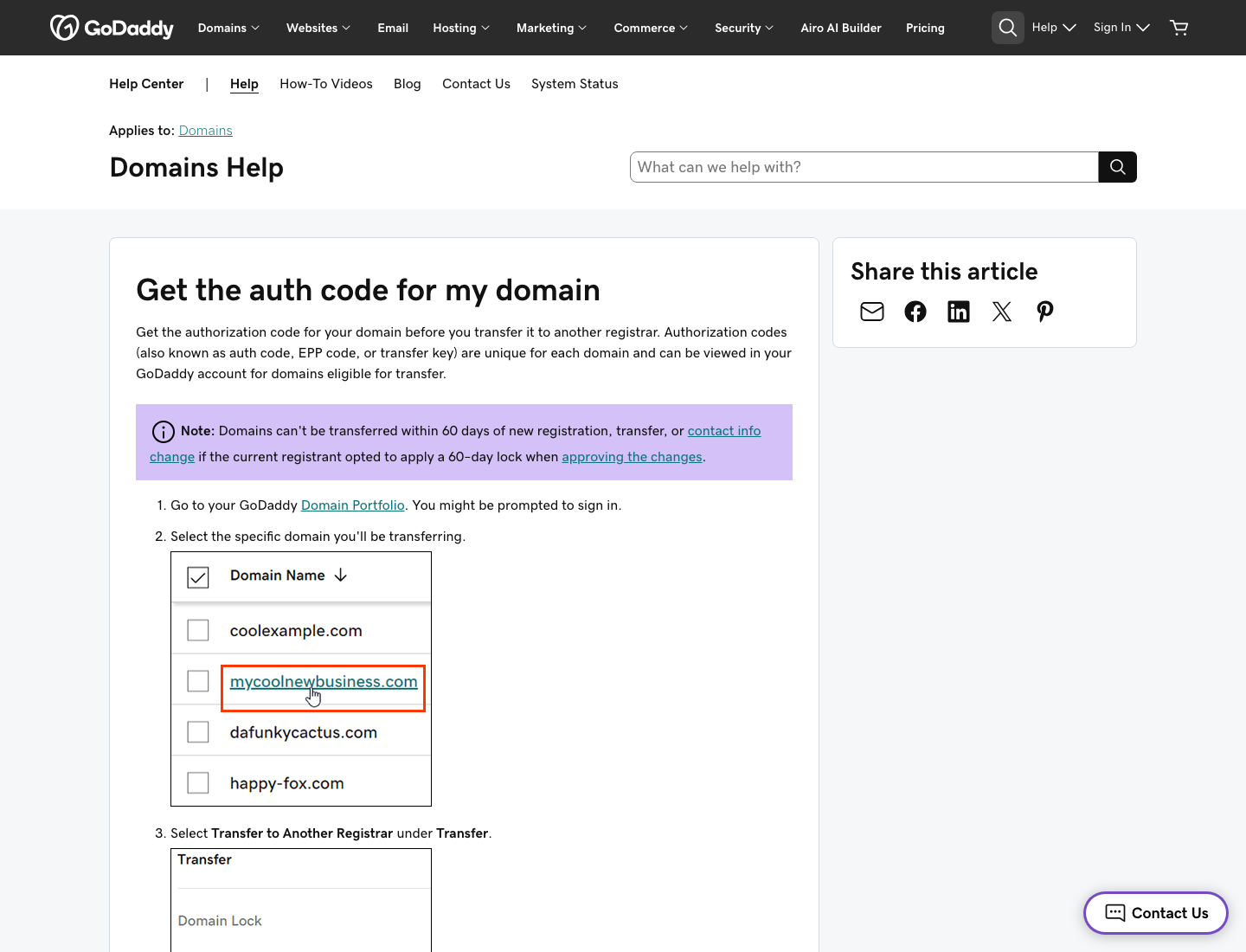 Rendered screenshot from GoDaddy's current help article. Source: GoDaddy - Get the auth code for my domain.
Start the transfer at High Octane Hosting
- Open the High Octane Hosting domain transfer page.
- Enter the domain name without
https://orwww. - Paste the authorization code, EPP code, or transfer key from your current registrar.
- Add the transfer to your cart and complete checkout.
- Watch the registrant email address for approval messages from the current registrar and the registry.
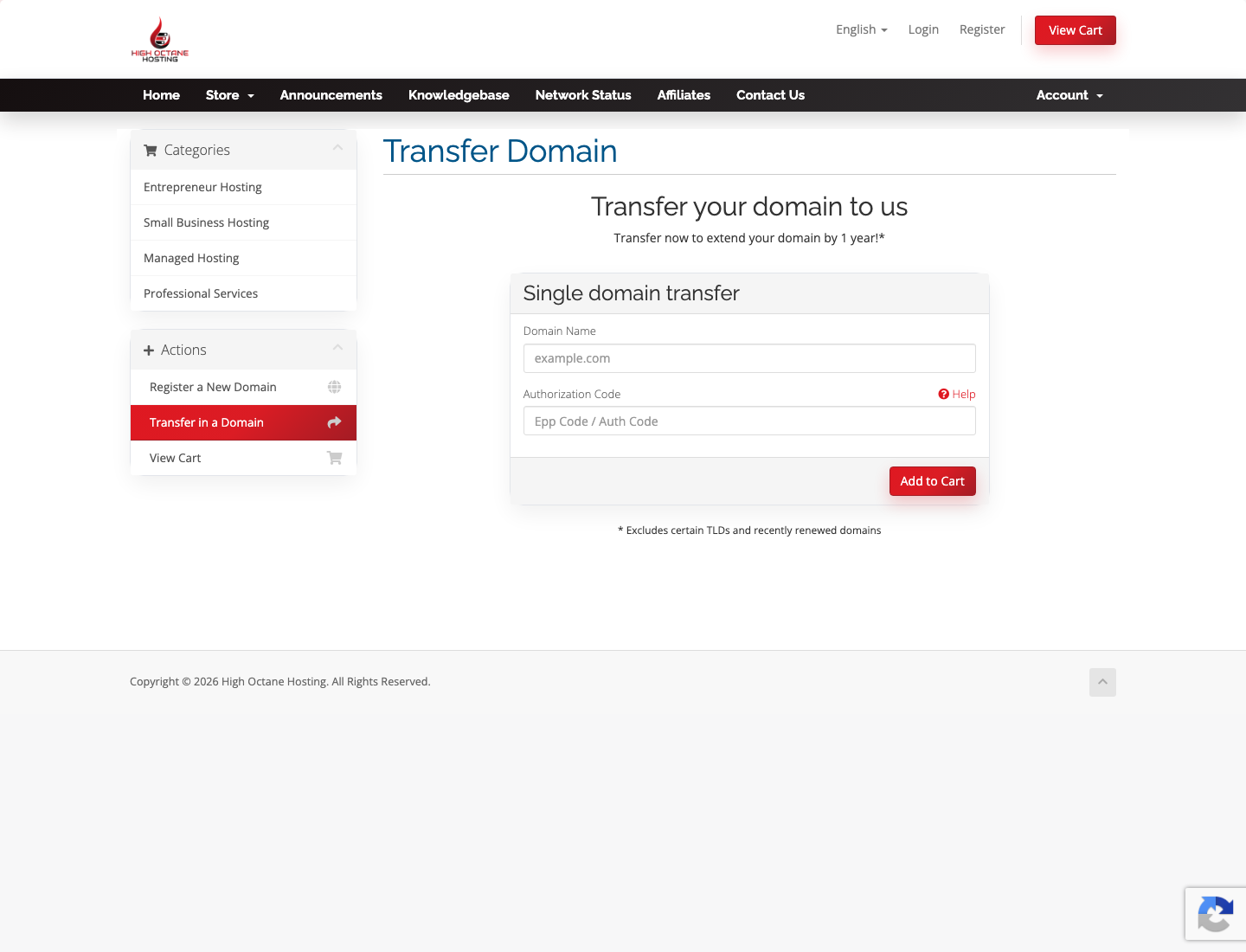 High Octane Hosting transfer form. Use this after you unlock the domain and copy the provider auth code.
GoDaddy note: GoDaddy may turn off domain privacy during transfer preparation and may email the auth code to the registrant email address. Check that inbox before opening a support ticket.
